
-
Microsoft Intune
-
Entra ID
-
- Articles coming soon
-
-
Microsoft Azure
-
Windows
-
Microsoft 365
-
Linux
-
Netværk
-
Other
What is Etherchannelling and how is it configured?
EtherChanneling is a networking technology that combines multiple physical Ethernet links into a single logical link to increase bandwidth and provide redundancy.
What is Link Aggregation/Etherchannelling and why use it?
link Aggregation or EtherChannels as its called in the Cisco world is a technologi responsible for creating logical interfaces that bundles physical interfaces into one logical. It provides redundancy to port and cable failures and can improve the bandwith in a netowrk.
Despite this advantage, EtherChannel has limitations. It requires all bundled links to operate at the same speed and duplex settings. While it improves bandwidth across the bundle, individual data flows are limited to the capacity of a single link, which can sometimes reduce its effectiveness for specific high-demand applications.
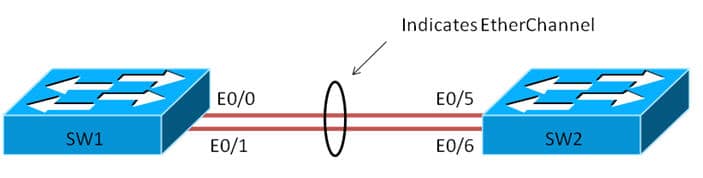
Etherchannel modes
Below is a list of some of the main Link Aggregation protocols and a short description of the modes they have.
PAgP (Cisco Protocol)
Desirable: Actively initiates negotiation by sending PAgP packets to form an EtherChannel. Works with the both Auto and Desirable in the other end
Auto: It waits for PAgP packets from the other side to form an EtherChannel but does not initiate the process itself. Works only if the other end is configured as Desirable.
LACP (IEEE Standard)
Active: Actively sends LACP packets to negotiate and establish an EtherChannel. Works with the other end being configured both as Active or Passive.
Passive: The device listens for LACP packets but does not initiate negotiation. Works only if the other end is configured as Active.
Manual mode
This mode does not use any negotiation protocol (neither PAgP nor LACP). The EtherChannel is statically configured, and both ends must be manually set to On for the channel to work. With manual mode you have no dynamic negotiation or failover capability.
How to configure Etherchannels on a Cisco switch or router
Step 1: Login to global configuration mode
# Type enable to enter Privileged EXEC mode
enable

# Type Configure Terminal to enter global configuration mode
configure terminal
Step 2: Configure interfaces
Select all interfaces you want for your etherchannel group, and choose the mode that suits your needs, reed more about channel modes in the top of the article.
S1(config)# interface range <FastEthernet 0/1 - 2>
S1(config-if-range)# channel-group 1 mode active
S1(config-if-range)# exit
Step 3: Configure port group
Chaning the port settings in the port groups allows you to automaticly push these settings to all the members of the port group.
Hint: The port does not need to be configured as a trunk as i use in this example
S1(config)# interface port-channel 1
S1(config-if)# switchport mode trunk
USEFULL COMMANDS
Use below commands to verify and troubleshoot the configuration from above.
show interfaces port-channel 1
show etherchannel summary
show etherchannel port-channel
show interfaces f0/1 etherchannel